Microsoft Power Automate (Flow)
Assently E-Sign integrates with the Microsoft Power Platform, allowing you to make flows in Microsoft Power Automate (Flow). These flows can be triggered by E-Sign, or perform actions in E-Sign based on other triggers. Find information below on how to enable the add-on in E-Sign, setting up a connection and creating a flow.
Power Automate will access Assently E-Sign through our API v2. Reading our API documentation could help you create your flows.
Enable Power Automate on your E-Sign Account
Ask Assently to enable Microsoft Power Automate (Flow) on your account if you don't already have it set up.
Set up a Connection
A connection is set up for each E-Sign Account you want to use in Microsoft Flow.
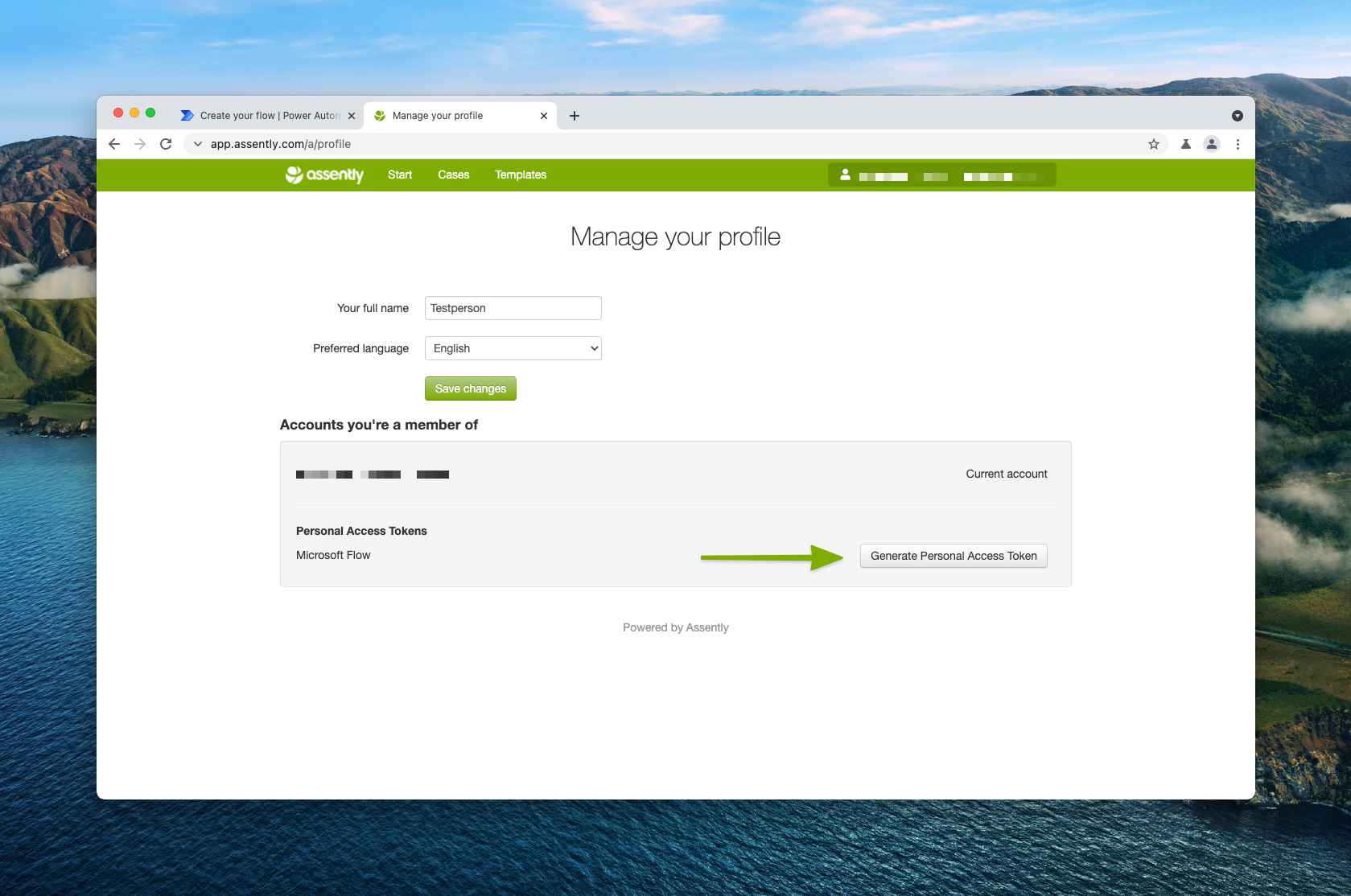
- Go to your profile to generate a Personal Access Token.
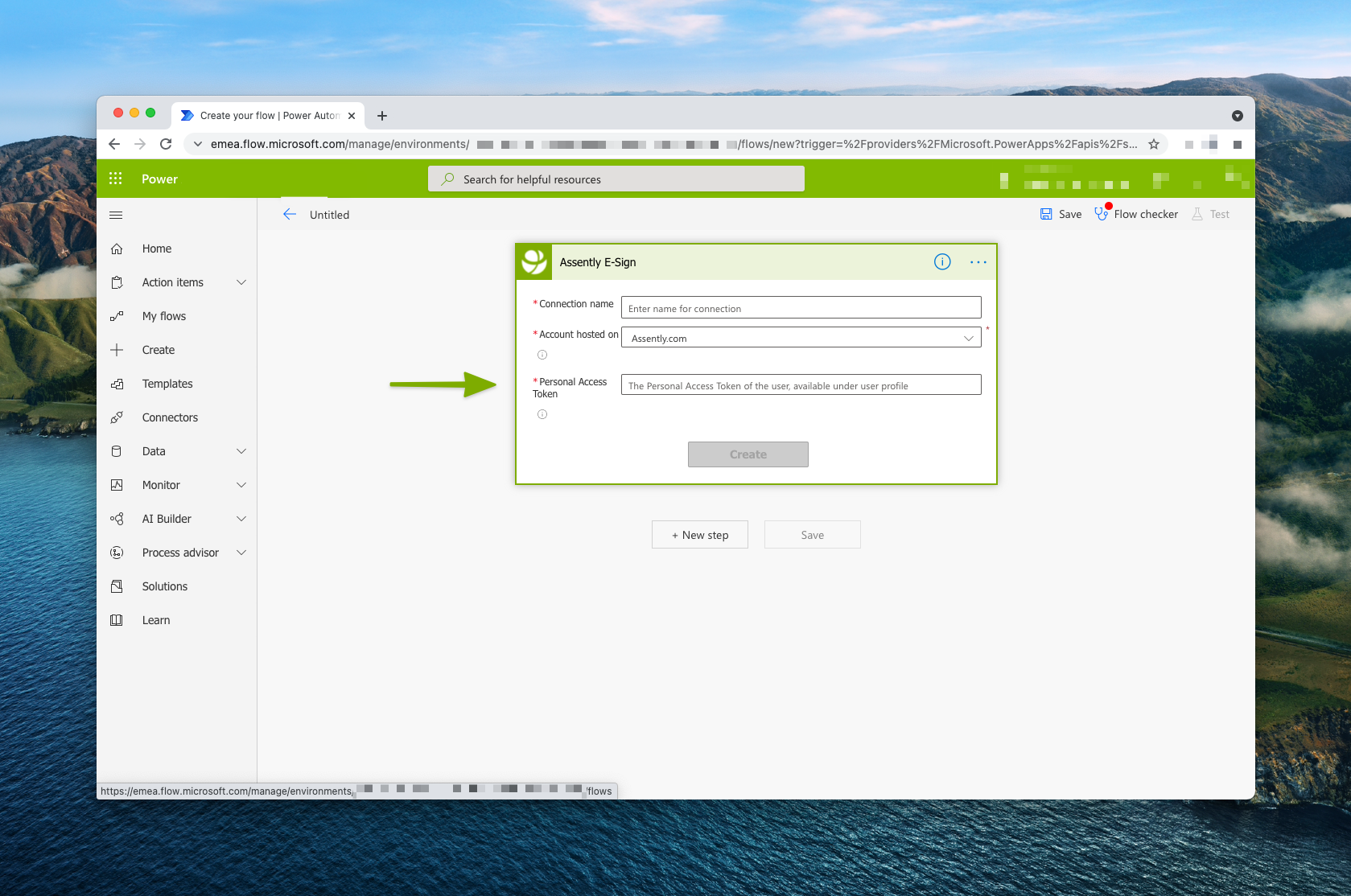
- Make a new connection by going to The Assently E-Sign Connector. Provide the connection wth a name (such as the name of the E-Sign Account) and the Personal Access Token.
Working with Flows
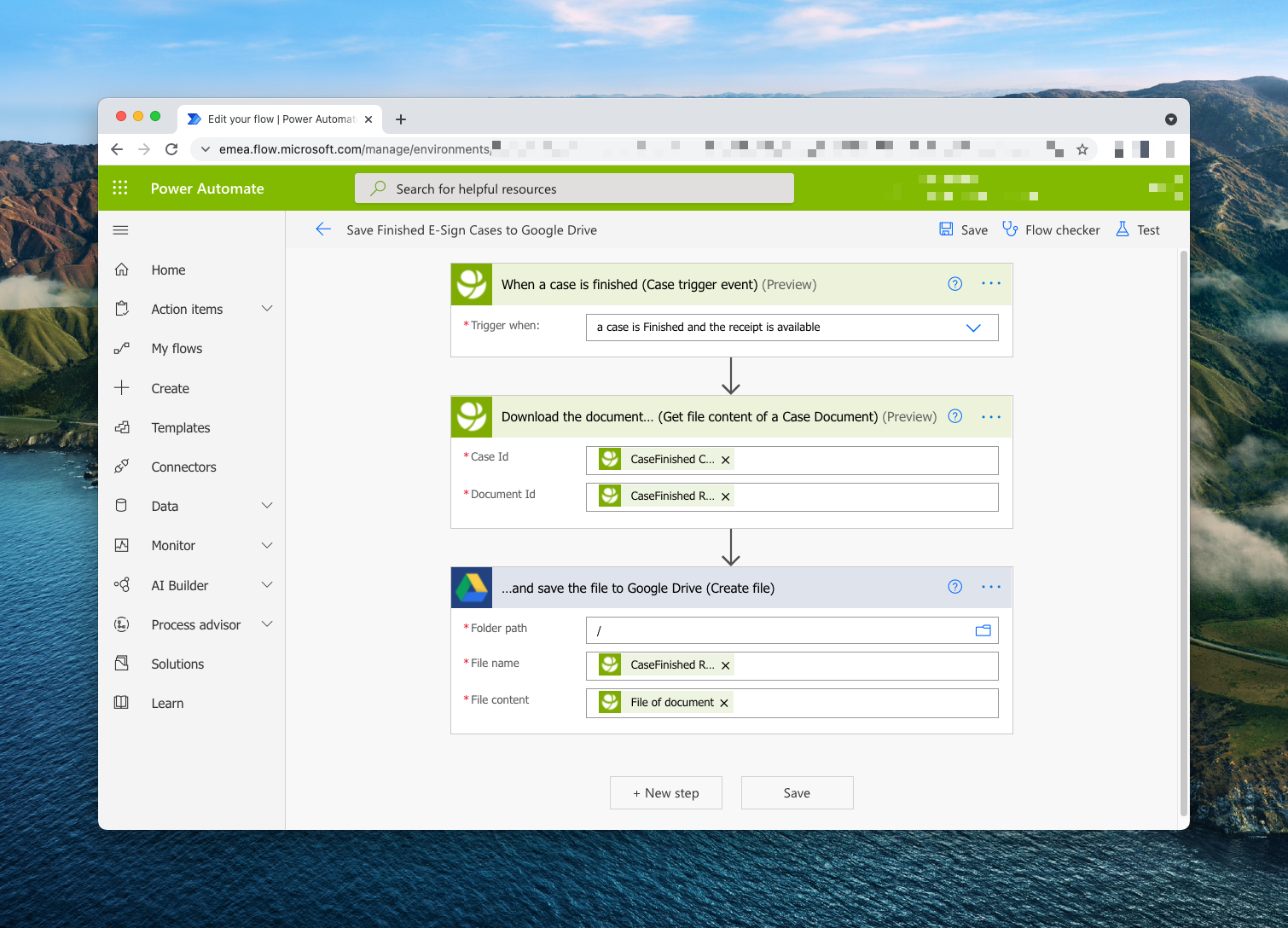
A sample flow: Save Finished E-Sign Cases to Google Drive
In this sample flow, finished document from an E-Sign account is saved to Google Drive. It consists of three steps.
- When a Case is finished
- Download the document…
- … and save the file to Google Drive.
Set up a flow
There are three ways to set up flows. You can start blank, use a template, or start from a connector. The best way to set up your flow depends on what you want to achieve.
Start from blank
- Log on to Microsoft Flow.
- Choose Create and Automated cloud flow, Instant cloud flow or Scheduled cloud flow.
For this example we'll use an Automated cloud flow.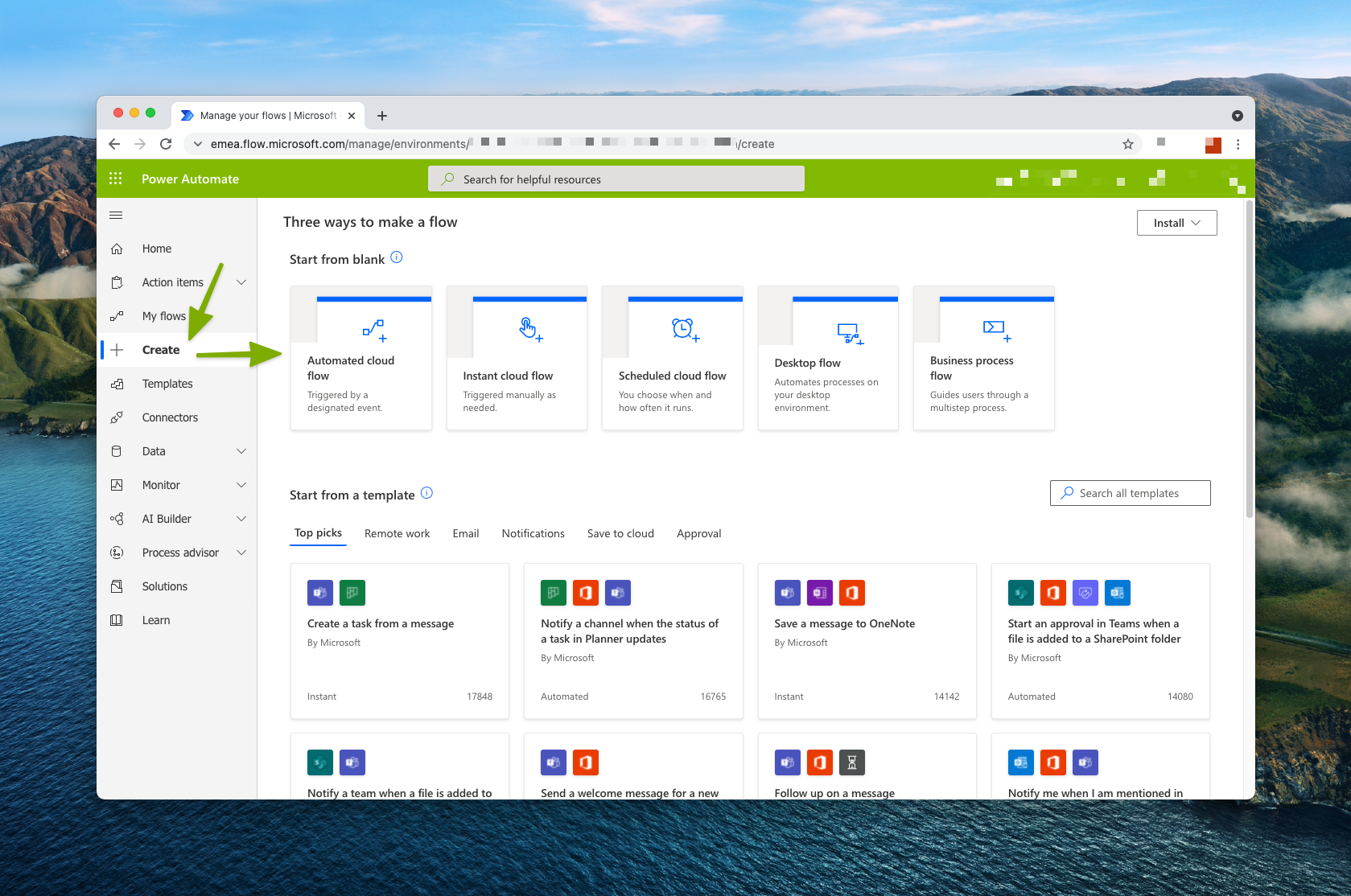
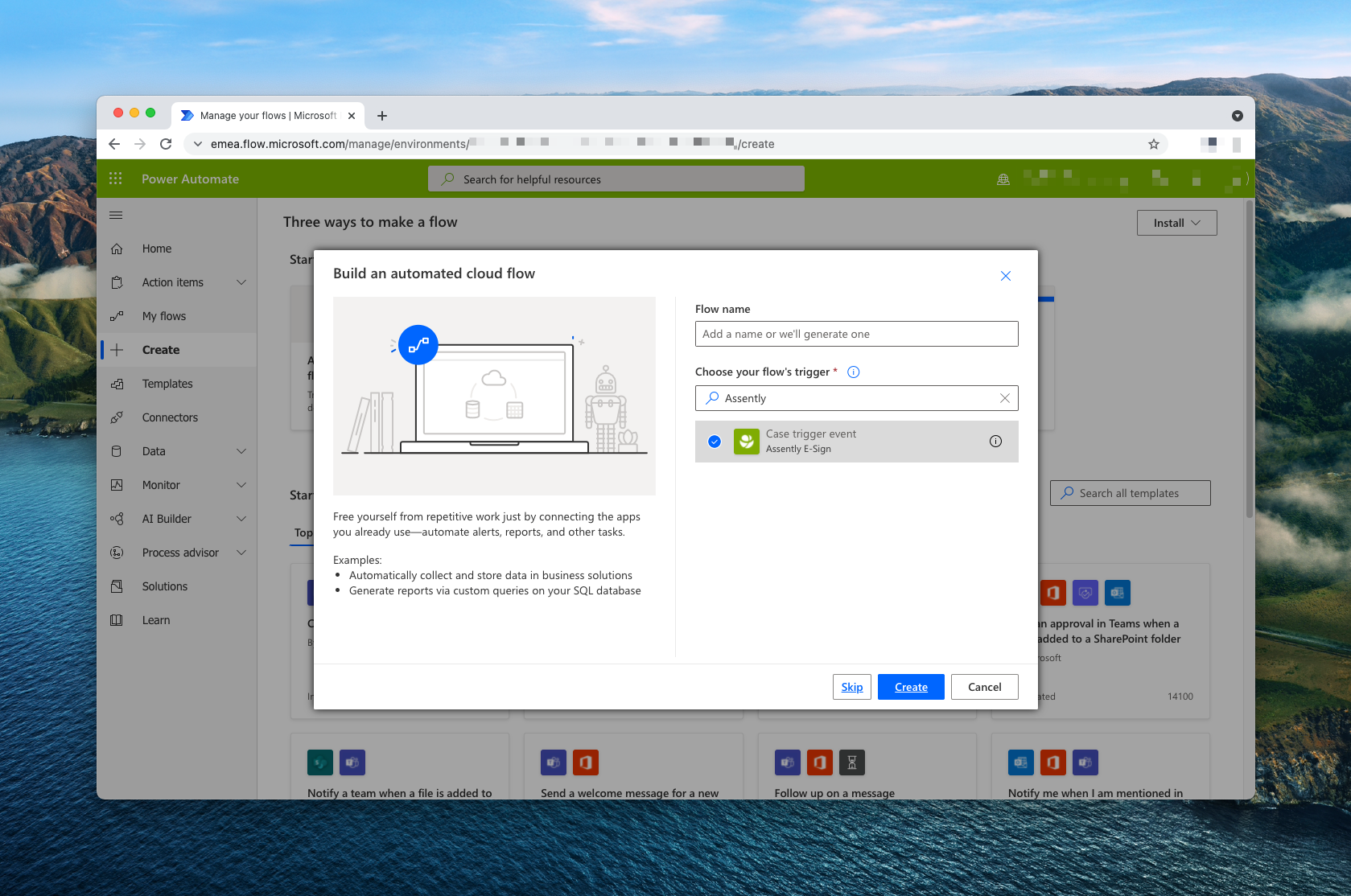
- Search for Assently in the "Choose your flow's trigger" field and choose "Case trigger event" and Create.
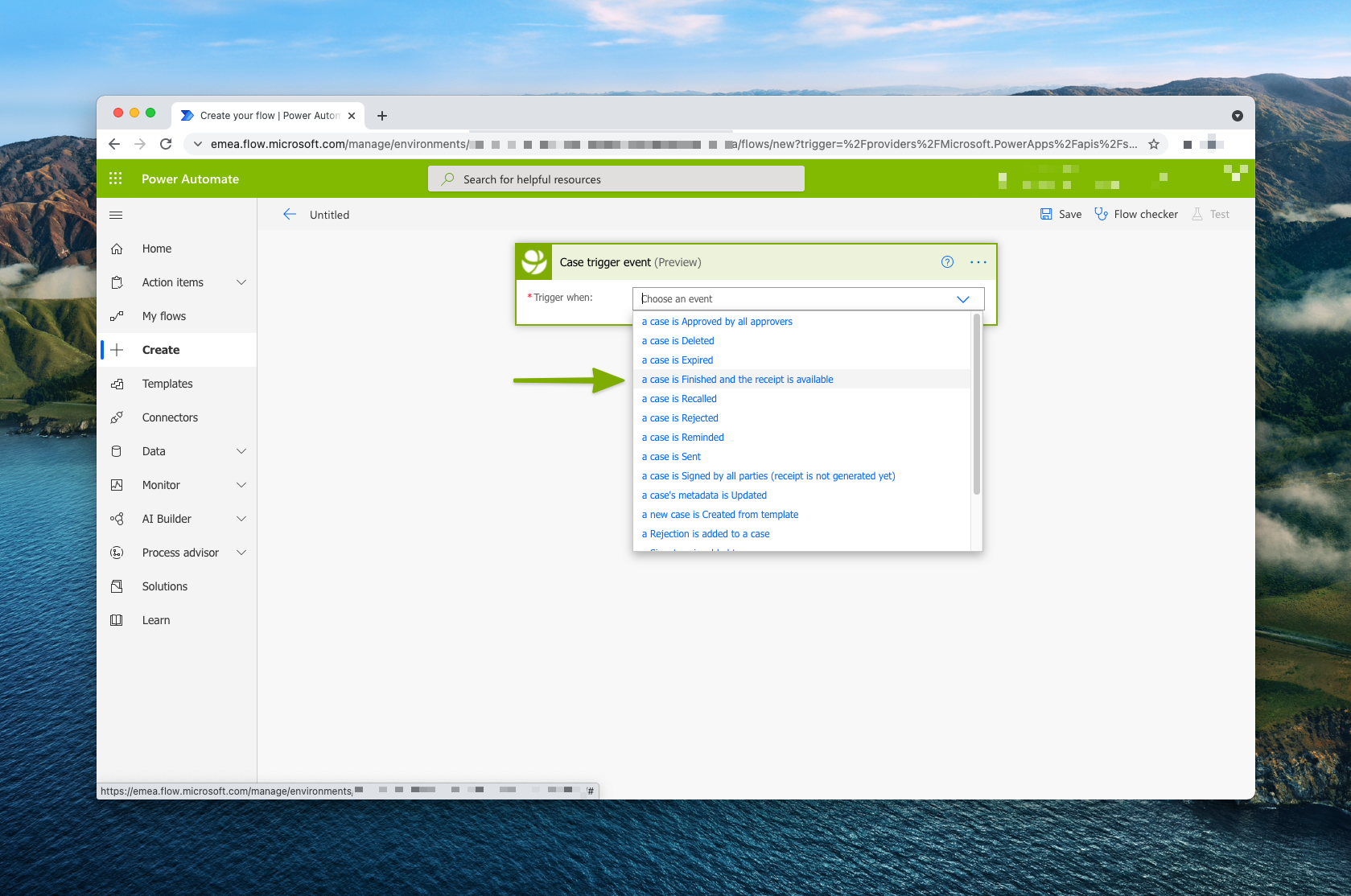
- Choose "a case is Finished and the receipt is available" in the "Trigger when" field.
- Choose "+ New step" and choose what operation you want to happen once a case has been Finished in your account.
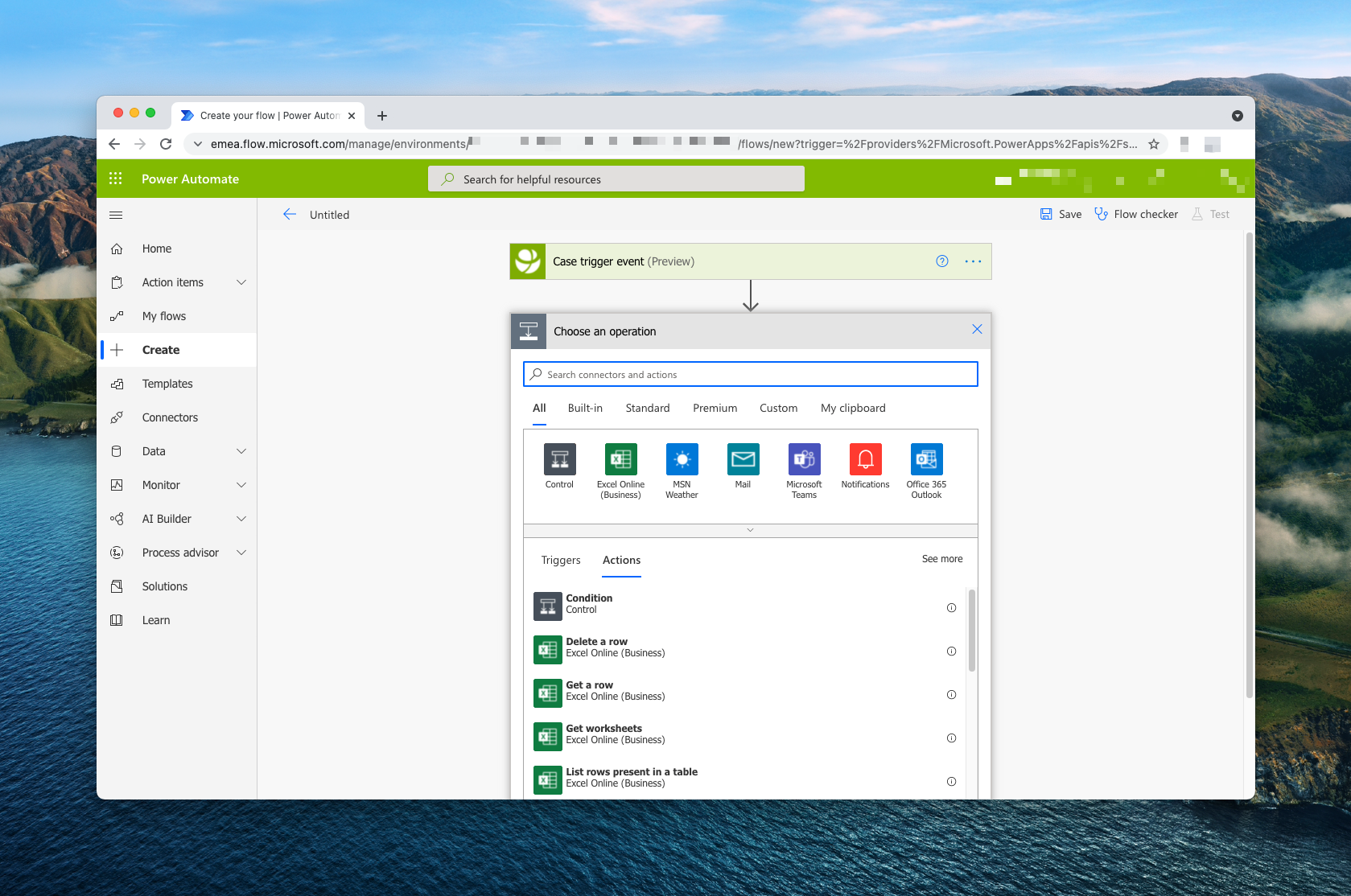
The next step can be something available in the E-Sign connector or in another connector available in the Microsoft Power Platform.